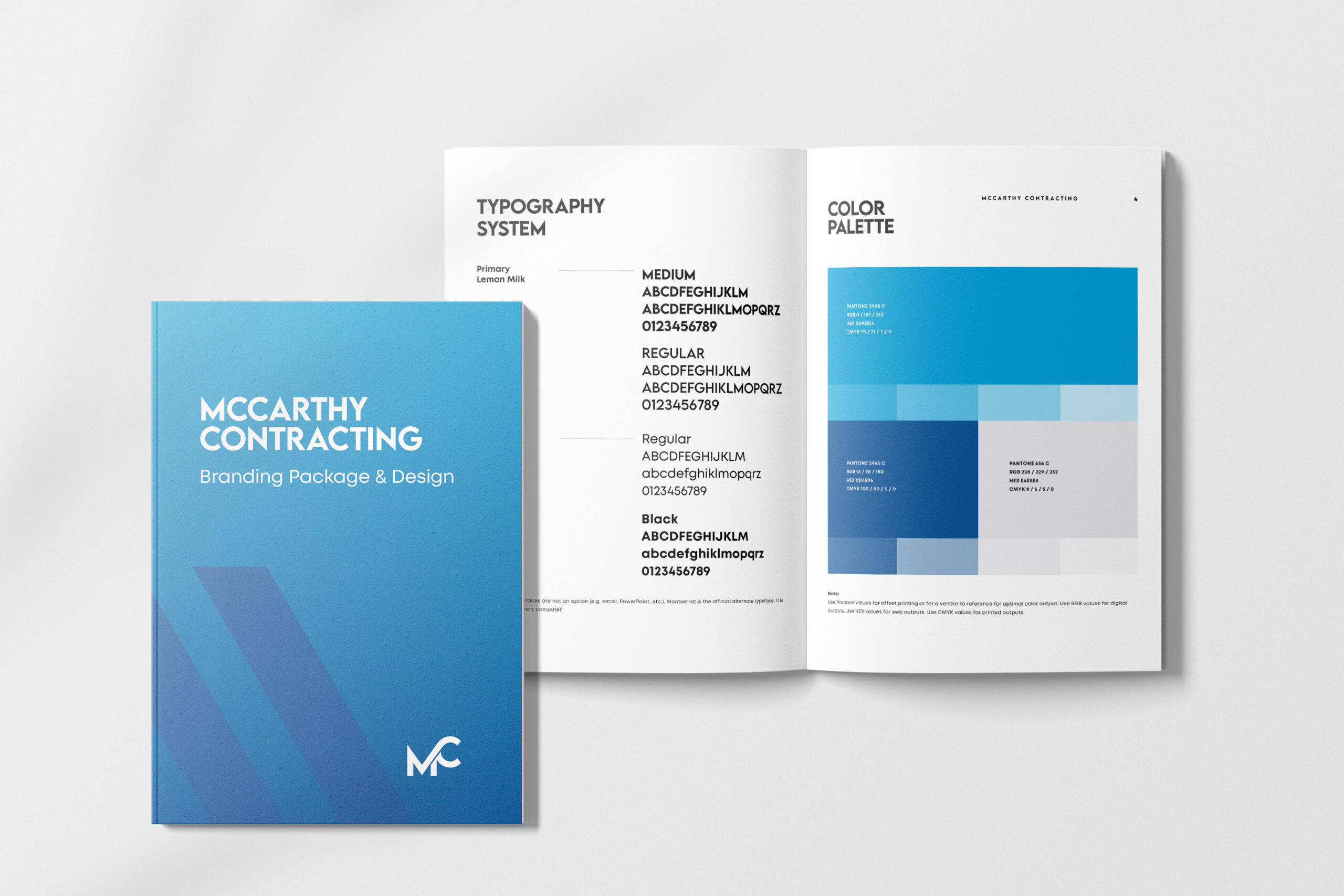
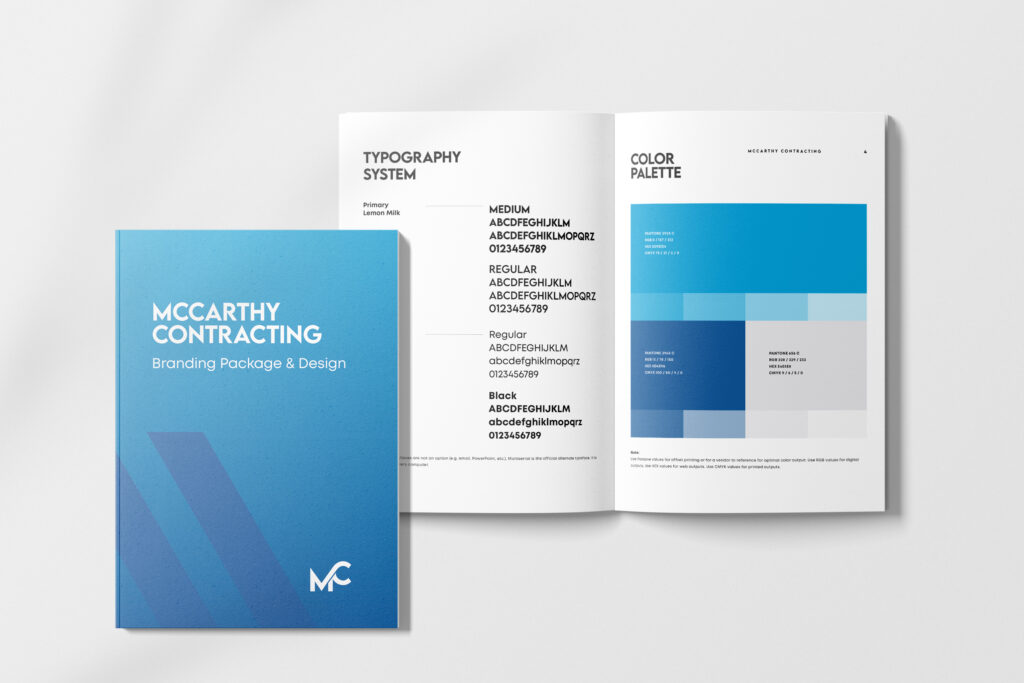
The design process is exactly as it sounds; it’s a process. You start a project, discuss goals with your client and then start designing. Whether the project involves branding or rebranding a company, illustrating a book, or creating a flyer, the design development will involve the creation of a color palette.
The color palette you create matters! Color psychologically influences our decisions and the emotions evoked by seeing different colors. I won’t waste your time in this article telling you why color is essential for every part of a design; instead, I will share a fun tip you can use in Illustrator to generate your own color palette.
You can look at the reference pictures or follow along in Illustrator with me!
Step 1
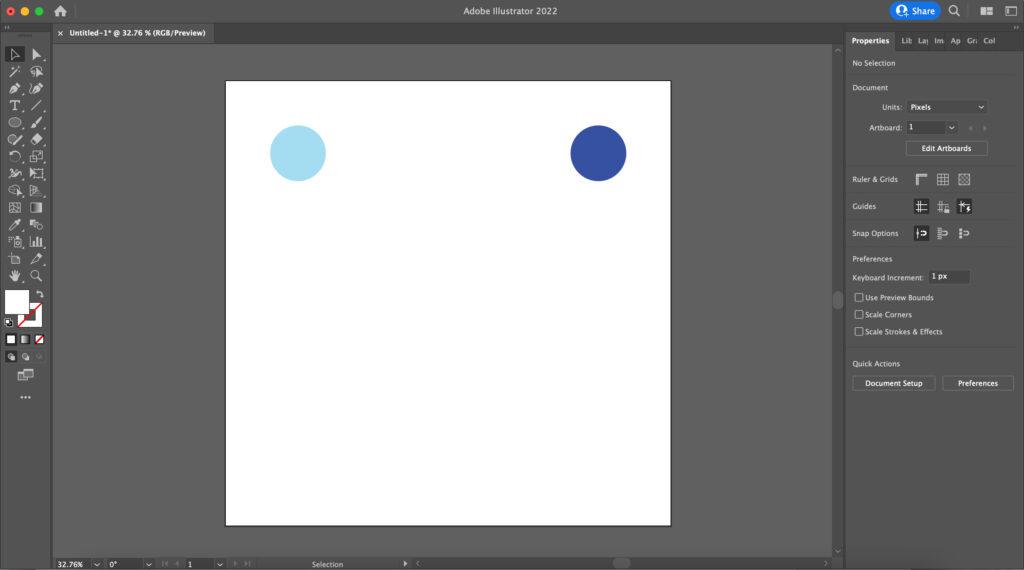
I’m going to start with some example colors. If you’re following along, pick one light color and one darker color. The colors do not need to match, although I suggest choosing similar colors for a better result. For example, you could select one light shade of pink, one dark shade of pink, etc. I’m going to start with one light blue on the far left side of the artboard and one dark blue on the far right side.
Step 2
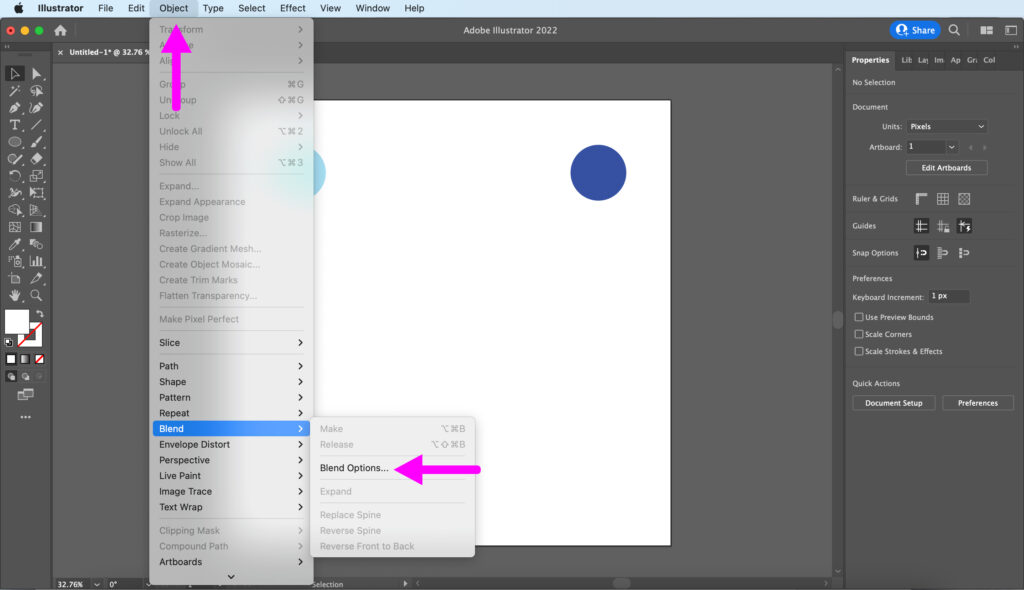
Now that we have two colors, let’s look at your blend setting options! Click “object” at the top of the page; you will see this window. Hover your mouse over the “blend” section and click “blend options.”
Step 3
When you click “blend options,” it will default select “smooth color.” We don’t want to smooth the color; we want to figure out what color exists between the two we selected. Click the drop-down menu and choose “specified steps.”

Step 4
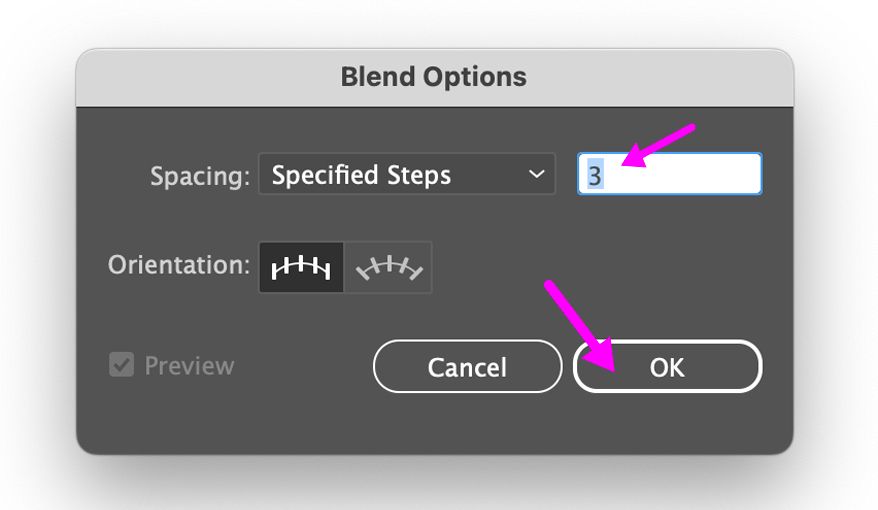
After clicking “specified steps,” you can select the number of “steps” between the colors you want to see. I want to see three steps. After you input the number of steps, click “ok,” at the bottom.
Step 5
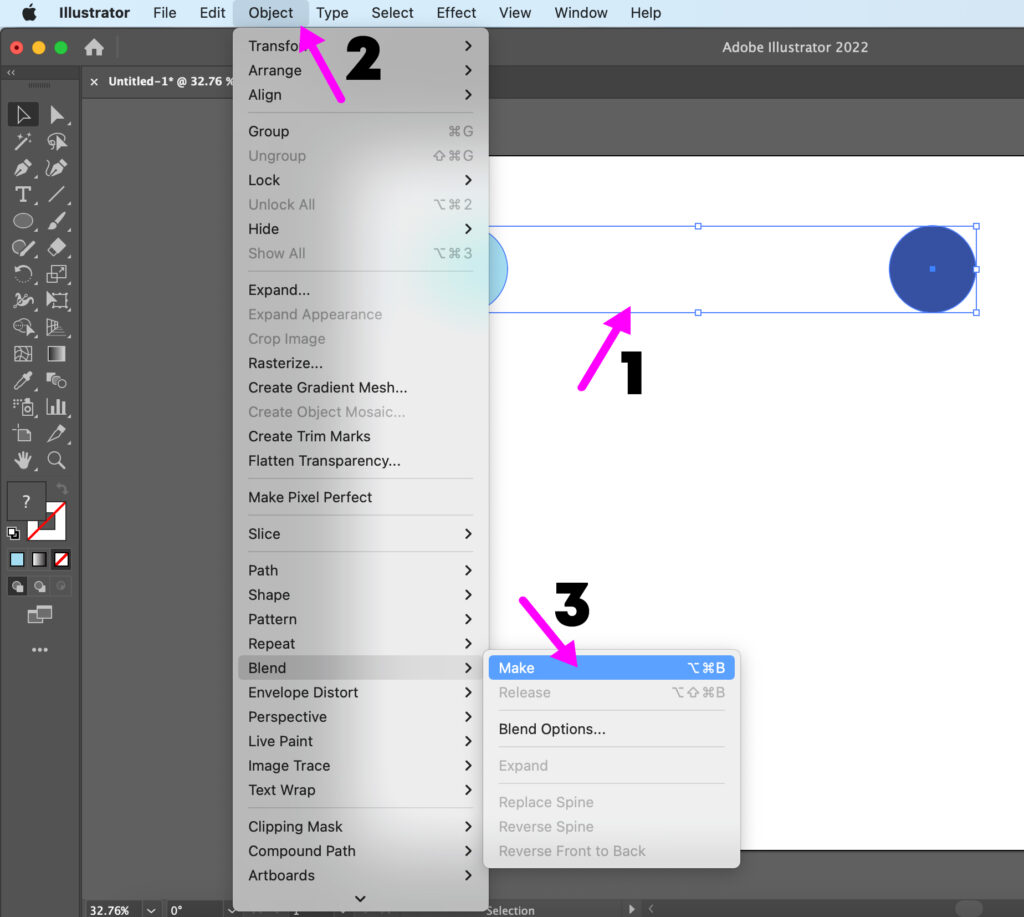
Are you frustrated because nothing happened? We’re not done yet! We just told Illustrator what it needs to do the next time we use the blending option. This step is where the magic happens. First, use the selection tool and select both of your colors. Next, go back to the top and click “object.’ Hover your mouse over “blend.” Finally, click “make.”
The Final Reveal
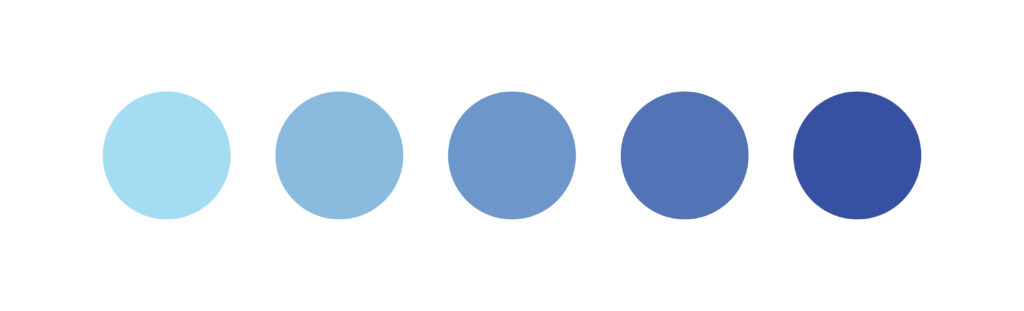
Now look at your colors; it’s the final reveal! Illustrator shows you the colors that exist between the two colors you chose. The number of steps we decided on in the blending options gave us a color palette based on our original colors. Below is my final result.
For those of us who are not necessarily, “color whisperers,” the ability to generate color palettes in Illustrator is a MAJOR game changer! I would love your thoughts on this exercise or any remaining questions. You can email me at Katherine.g.fitch@gmail.com or message me on LinkedIn, Instagram, or Facebook.
No Comments.